
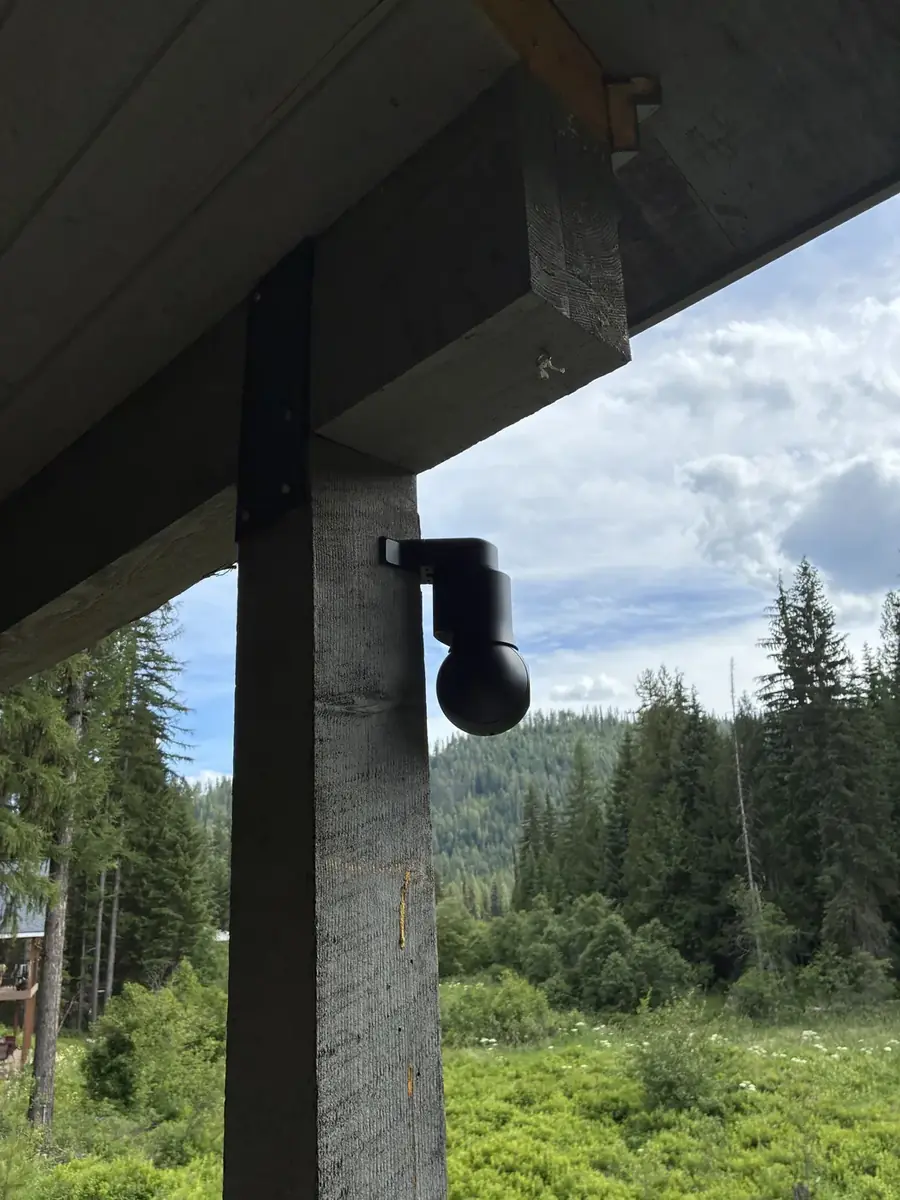
Your cameras come with a free app called UniFi Protect. This page walks you through it one step at a time. If you get stuck at any point, call us at 208-219-5040. We’re happy to walk you through it.
1. What you need
- A smartphone (iPhone or Android) or a computer.
- The email invitation we send you from Ubiquiti (the company that makes UniFi).
- About 10 minutes.
- Your email inbox open, because you’ll get sign-in codes there.
2. Install the app
iPhone
- Open the App Store.
- Search for UniFi Protect.
- Look for the app made by Ubiquiti Inc. and tap Get.
Screenshot coming soon: UniFi Protect in the App Store
Android
- Open Google Play.
- Search for UniFi Protect.
- Look for the app made by Ubiquiti Inc. and tap Install.
Screenshot coming soon: UniFi Protect in Google Play
The app is free. There’s no monthly fee to watch your cameras.
3. Accept our invite and sign in
- Look in your email for the invitation from Ubiquiti. (Check Spam or Junk if you don’t see it.)
- Tap the button in the email to accept the invitation.
- If you already have a UI account, sign in. If not, create one with the same email address the invite was sent to.
- Make a strong password and write it down somewhere safe.
- Open the UniFi Protect app and sign in with that email and password.
Screenshot coming soon: the invitation email and the app sign-in screen
About the extra security code
Ubiquiti requires a second step when you sign in. By default it emails you a code. Open your email, find the code, and type it into the app.
- Optional: Ubiquiti’s free UI Verify app lets you approve sign-ins with one tap.
- Important: set up more than one way to get codes, like email and UI Verify. Ubiquiti can’t reset this for you if you lose them all.
4. Find your system
- After you sign in, the app shows your camera system. Ubiquiti calls it a “console.”
- If you see more than one, tap the one with your property’s name.
- You’ll land on the Dashboard, with a picture from each camera.
Screenshot coming soon: the Dashboard with camera pictures
5. Watch your cameras live
- On the Dashboard, tap any camera picture.
- It opens big and live.
- Turn your phone sideways for full screen.
- Pinch with two fingers to zoom in.
- Tap the back arrow to return to all cameras.
Screenshot coming soon: a live camera in full screen
6. Go back in time
- Open a camera.
- Below the video is the Timeline, a strip you can slide.
- Slide it with your finger to go back in time. The video plays from that moment.
- Small marks and pictures on the timeline show when something happened.
- Tap Live to jump back to right now.
Screenshot coming soon: the Timeline with event marks
7. Find people, cars, and motion
- Tap Find Anything at the bottom of the app.
- Choose what you’re looking for, like Person or Vehicle, and pick a date.
- Tap a picture to watch that moment.
Screenshot coming soon: Find Anything results
The kinds of detections you see depend on your camera models.
8. Save or share a clip
- Play the moment you want to keep.
- Tap the Share icon.
- Choose Export clip.
- Save it to your phone, or send it by text or email.
Screenshot coming soon: Share, then Export clip
Saved clips stay on your phone. Treat them like private photos.
9. Turn alerts on or off
First, allow alerts on your phone
- iPhone: Settings → Notifications → UniFi Protect → turn on Allow Notifications.
- Android: Settings → Apps → UniFi Protect → Notifications → turn on.
Then choose which alerts you get
- In the app, open Alarm Manager.
- Find the alert, for example “Person at driveway.”
- Under My Notifications, turn Push on or off for yourself.
Screenshot coming soon: Alarm Manager, My Notifications
Want alerts only when you’re away from the cabin? Ask us to set up location-based alerts. Your phone’s location setting for the app needs to be Always (iPhone) or Allow all the time (Android).
Easiest option: tell us which cameras should alert you, and when, and we’ll set it up.
10. Add another family member
The easiest way is to call or email us with their name and email. We’ll send them a view-only invite.
- They follow steps 2 to 4 above with their own email and password.
- Each person should have their own login. Please don’t share yours.
- If you manage your own system: in Site Manager at unifi.ui.com, go to People → New Admin, add their email, and give them only the Protect access they need, such as view only. They need a UI account first.
11. Use it on a computer
- Go to unifi.ui.com in your web browser.
- Sign in with the same email, password, and code.
- Click your system, then click the Protect icon.
- Use Playback to look back and Find Anything to search. To save a clip, select it and click the Download icon.
Screenshot coming soon: unifi.ui.com with Protect open
12. Troubleshooting
No video, or “console offline,” when you’re away
- Your cameras still record at the property. The app just can’t reach them until the internet is back.
- At the lake this is usually a Starlink or power outage. Check that power is on and restart the Starlink router by unplugging it for 30 seconds.
- Still offline? Call 208-219-5040. We can often check it remotely.
Forgot your password
- On the sign-in screen, tap Forgot password and follow the email.
- Lost your 2-step codes too? Call us and we’ll help get you a new invite.
Alerts aren’t showing up
- Make sure phone notifications are on for UniFi Protect (step 9).
- Check that Push is on for that alert in Alarm Manager → My Notifications.
- Android: turn off battery optimization for UniFi Protect (Settings → Battery), and turn off Data Saver.
- iPhone: turn off Low Power Mode and turn on Background App Refresh for UniFi Protect.
- Update the app in the App Store or Google Play.
- A VPN on your phone can get in the way. Try turning it off.
Video is choppy
Slow internet at the cabin or on your phone can make live video stutter. Try again on Wi-Fi, or watch the clip later.
13. Privacy tips
- Use your own login and a strong password. Never share sign-in codes.
- Keep 2-step sign-in on, with a backup method.
- Give family members only the access they need. View only is right for most people.
- Point cameras at your property, not at neighbors’ windows or yards.
- Remove access for people who no longer need it. We can do it for you.
- Your recordings are stored on the equipment at your property, not in a paid cloud service.
Common questions
Why does the UniFi Protect app say my console is offline?
Your cameras still record at the property. The app just can’t reach them until the internet is back. At the lake this is usually a Starlink or power outage. Check that power is on and restart the Starlink router by unplugging it for 30 seconds. Still offline? Call 208-219-5040. We can often check it remotely.
I forgot my UniFi password. What do I do?
On the sign-in screen, tap Forgot password and follow the email. If you also lost your 2-step codes, call 208-219-5040 and we’ll help get you a new invite.
Why am I not getting camera alerts on my phone?
Make sure phone notifications are on for UniFi Protect, and that Push is on for that alert in Alarm Manager under My Notifications. On Android, turn off battery optimization and Data Saver for the app. On iPhone, turn off Low Power Mode and turn on Background App Refresh. Update the app, and try turning off any VPN.
Can I add a family member to my cameras?
Yes. Call or email us with their name and email and we’ll send them a view-only invite. Each person should have their own login.
Still stuck?
We installed it, and we’re happy to help. Call or text 208-219-5040, or email Kyle@PriestLakeTech.com.